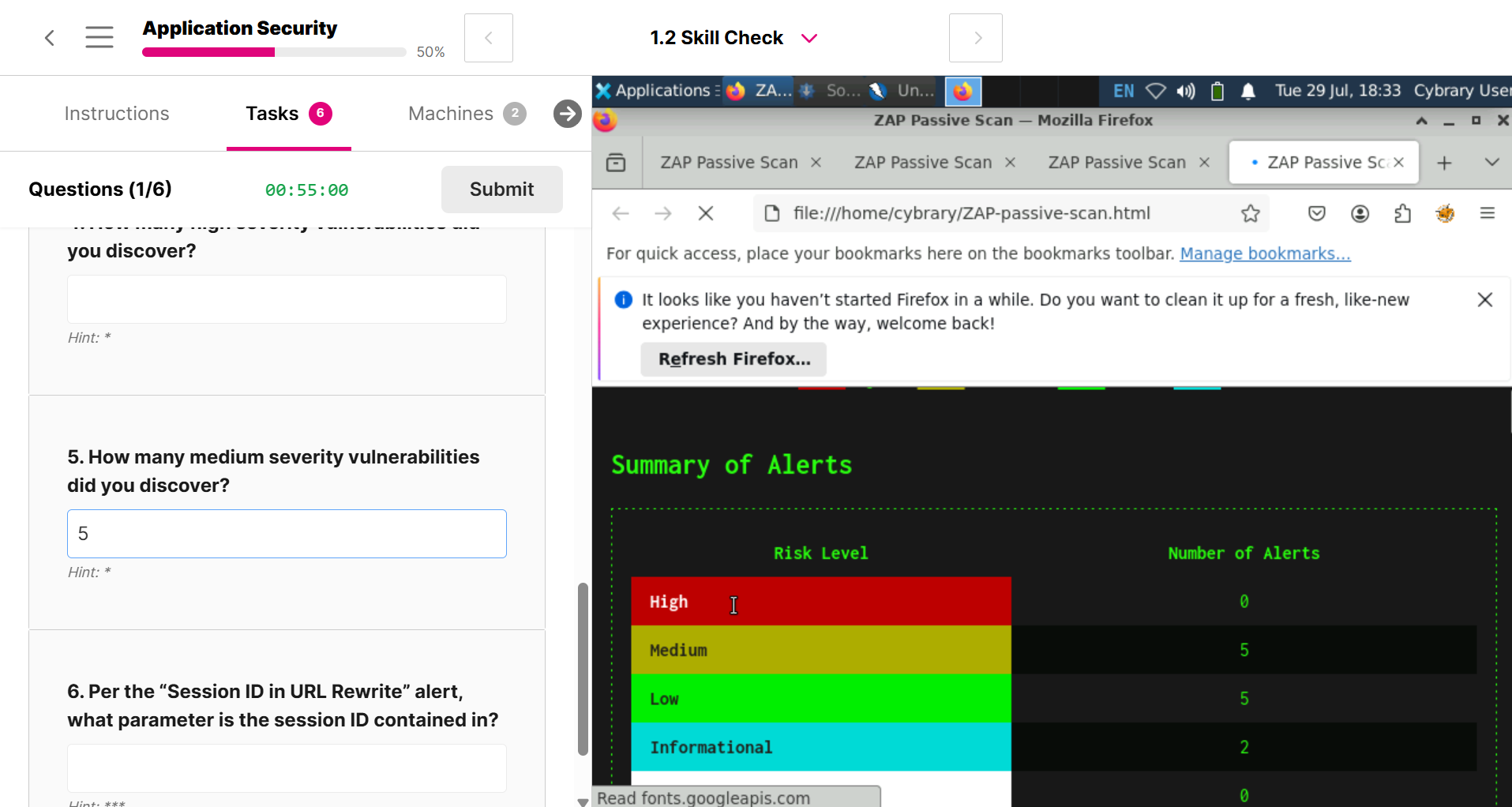
I don’t understand how to do the analysis, I just need help to understand how to begin. Do I have to install something? or what do I have to run, sorry since all the courses we worked with GitLab, right now i am a bit lost.
@JosephWhite this one seems to be about the Application Security skill path (from Security Engineer) - not Application Attacks
I’m running through the assessment now to see if we need to add some clarification to the instructions.
For the Skill Check of the Application Security assessment, there are two sets of questions.
The first is related to the Static Code Analysis lab and relies on SonarQube, which was previously introduced in the SCA lab. The instructions from the assessment read:
Scenario: As a Security Engineer, you’ve finished Threat Modeling “GetJuiced,” your company’s B2B Javascript-based application, and now you have grander ambitions to expand your secure software development lifecycle. A well-oiled CI/CD pipeline with some static code analysis (SCA) here, dynamic code analysis (DCA) there – oh, the machine you’ll build!! A security engineer’s dream. But the hard part comes first - the decisions. And you’re going to help make one of the first important ones: what tools?
Your job is to run tests on two of the top candidates: SonarQube for SCA, and ZAP for DCA. No pipeline, just some local scans to get a read on these technologies.
On the SCA machine, there is a bookmark for SonarQube in Firefox. Create a local project in SonarQube that you will use to locally analyze the code repository at /home/cybrary/getjuiced on your local machine.
Once you’ve conducted your analysis, use the results to answer the following questions.
So the key instruction in there is to navigate to the SCA machine (which should be your default landing VM), open Firefox, and click the SonarQube bookmark. Once you’ve logged in to SonarQube with the saved credentials, you’ll need to create a new local project when prompted.
Once you’ve created your project, when prompted to select an Analysis Method, you’re going to want to select Locally, then just follow the instructions on-screen (ie generate a token, then copy the commands supplied, open a terminal, navigate to the code repository directory supplied above, paste the commands, then hit Enter to run them). Once the analysis is complete, you’ll get the results in SonarQube.
Thank you, sorry I just didn’t know how to proceed locally.
All good - it’s simple enough, but still a bit confusing if you haven’t done it before, especially in the assessment context.